Create & Publish
 35+ Form Fields
Build the perfect form in a few clicks and drags.
35+ Form Fields
Build the perfect form in a few clicks and drags.
 Conditional Logic
Build forms that adapt to each user's answers.
Conditional Logic
Build forms that adapt to each user's answers.
 E-Signatures
Collect digital signatures directly in your forms.
E-Signatures
Collect digital signatures directly in your forms.
 Share Form Links
Each form you create generates a unique URL for easy sharing.
Share Form Links
Each form you create generates a unique URL for easy sharing.
 Embed Your Form
Embed your form anywhere that supports HTML.
Embed Your Form
Embed your form anywhere that supports HTML.
 Live Preview
Preview and test your form as you build it, without affecting your live form.
Live Preview
Preview and test your form as you build it, without affecting your live form.
 Offline Recovery
Automatically restore form data after connection loss or page refresh.
Offline Recovery
Automatically restore form data after connection loss or page refresh.Branding & Personalization
 70+ Theme Library
Start with a beautiful theme, then make it completely your own.
70+ Theme Library
Start with a beautiful theme, then make it completely your own.
 Custom Themes
Fully customize your form's design and reuse it across all your forms.
Custom Themes
Fully customize your form's design and reuse it across all your forms.
 Cover Photo
Add a custom cover photo or color to the top of your form.
Cover Photo
Add a custom cover photo or color to the top of your form.
 Logo Branding
Add your own logo to your forms, emails and PDF results.
Logo Branding
Add your own logo to your forms, emails and PDF results.
 Custom Social Share
Customise how your form appears when its link is shared.
Custom Social Share
Customise how your form appears when its link is shared.
 Custom Redirect
Redirect to your own thank you URL after form submission.
Custom Redirect
Redirect to your own thank you URL after form submission.
 Custom Favicon
Add your own favicon to your form's browser tab.
Custom Favicon
Add your own favicon to your form's browser tab.Sending & Configuration
 Custom Domains
NEW
Send autoresponders from your own domain.
Custom Domains
NEW
Send autoresponders from your own domain.
 PDF Results
Automatically generate branded PDFs from your form results.
PDF Results
Automatically generate branded PDFs from your form results.
 Autoresponders
NEW
Send automatic replies to form respondents.
Autoresponders
NEW
Send automatic replies to form respondents.Results & Management
 Results Dashboard
View, manage and export every form result from one place.
Results Dashboard
View, manage and export every form result from one place.
 Project Folders
Organize your forms into projects for easier management.
Project Folders
Organize your forms into projects for easier management.
 Project Members
Invite other users to your projects and build forms together.
Project Members
Invite other users to your projects and build forms together.Unlimited everything.
Build unlimited forms, collect unlimited results, and use unlimited templates — all for free.
By industry
 Legal Services
One home for every legal services form — conveyancing, family law, immigration and more, ready to customize.
Legal Services
One home for every legal services form — conveyancing, family law, immigration and more, ready to customize.
 Real Estate
One home for every real estate form — commercial property, estate agents, lettings & property management and more, ready to customize.
Real Estate
One home for every real estate form — commercial property, estate agents, lettings & property management and more, ready to customize.
 Healthcare
One home for every healthcare form — care homes, dental practices, gp & medical practices and more, ready to customize.
Healthcare
One home for every healthcare form — care homes, dental practices, gp & medical practices and more, ready to customize.
 Fitness
One home for every fitness form — calisthenics, climbing, crossfit and more, ready to customize.
Fitness
One home for every fitness form — calisthenics, climbing, crossfit and more, ready to customize.
 Beauty
One home for every beauty form — barbering, hair salon, lashes & brows and more, ready to customize.
Beauty
One home for every beauty form — barbering, hair salon, lashes & brows and more, ready to customize.
 Construction
One home for every construction form — bricklaying & masonry, carpentry & joinery, demolition and more, ready to customize.
Construction
One home for every construction form — bricklaying & masonry, carpentry & joinery, demolition and more, ready to customize.
 Hospitality
One home for every hospitality form — holiday rentals, hotels & b&bs, resorts & holiday parks and more, ready to customize.
Hospitality
One home for every hospitality form — holiday rentals, hotels & b&bs, resorts & holiday parks and more, ready to customize.By type
Contact Forms Make it easy to reach you — customizable contact forms for any site. Booking Forms Take bookings 24/7 — customizable forms your customers can submit anytime. Registration Forms Register people fast — events, courses and programs, ready to customize. Application Forms Collect applications of any kind — jobs, memberships, programs and more. Feedback Forms Hear what people think — customizable feedback forms for any audience. Lead Forms Fill the pipeline — lead-capture forms you can embed anywhere. Survey Forms Ask the right questions — customizable surveys for any audience.Popular
Contact Form Route customer inquiries cleanly — reason, urgency and account — so messages reach the right team and get the right response. Lead Capture Form Turn social media interest into leads — service, needs and contact details — captured the moment someone’s curious. Event Registration Form Register attendees for your non-profit events online, capturing contact details, dietary needs, and volunteer interest in one friendly form. Appointment Request Form Let patients request an appointment online — preferred date, time, type and reason — so your front desk can book it fast. Job Application Form Take job applications with one clean form — contact, role, resume, availability and eligibility — ready to shortlist. Customer Feedback Form Gather customer feedback on their store visit — satisfaction, what worked and any issues — so you keep shoppers coming back. Membership Signup Form Sign up new members to your community group online, capturing contact details, membership type, and consent in one tidy form.Start from a template.
Every one is free, fully customizable and ready to embed — make it yours in minutes.










Missing an app?
Pipe submissions to 6,000+ apps with Zapier, or hit any endpoint using webhooks.

HubSpot Plugin
ProTurn form results into HubSpot contacts.
Use the HubSpot Plugin to create new contacts from form results and map your form fields to HubSpot contact properties. You can also set a Lead Status and Lifecycle Stage for each contact.
# Set Up the Plugin
Open the Plugins page for your form, select HubSpot, and click Connect to HubSpot:
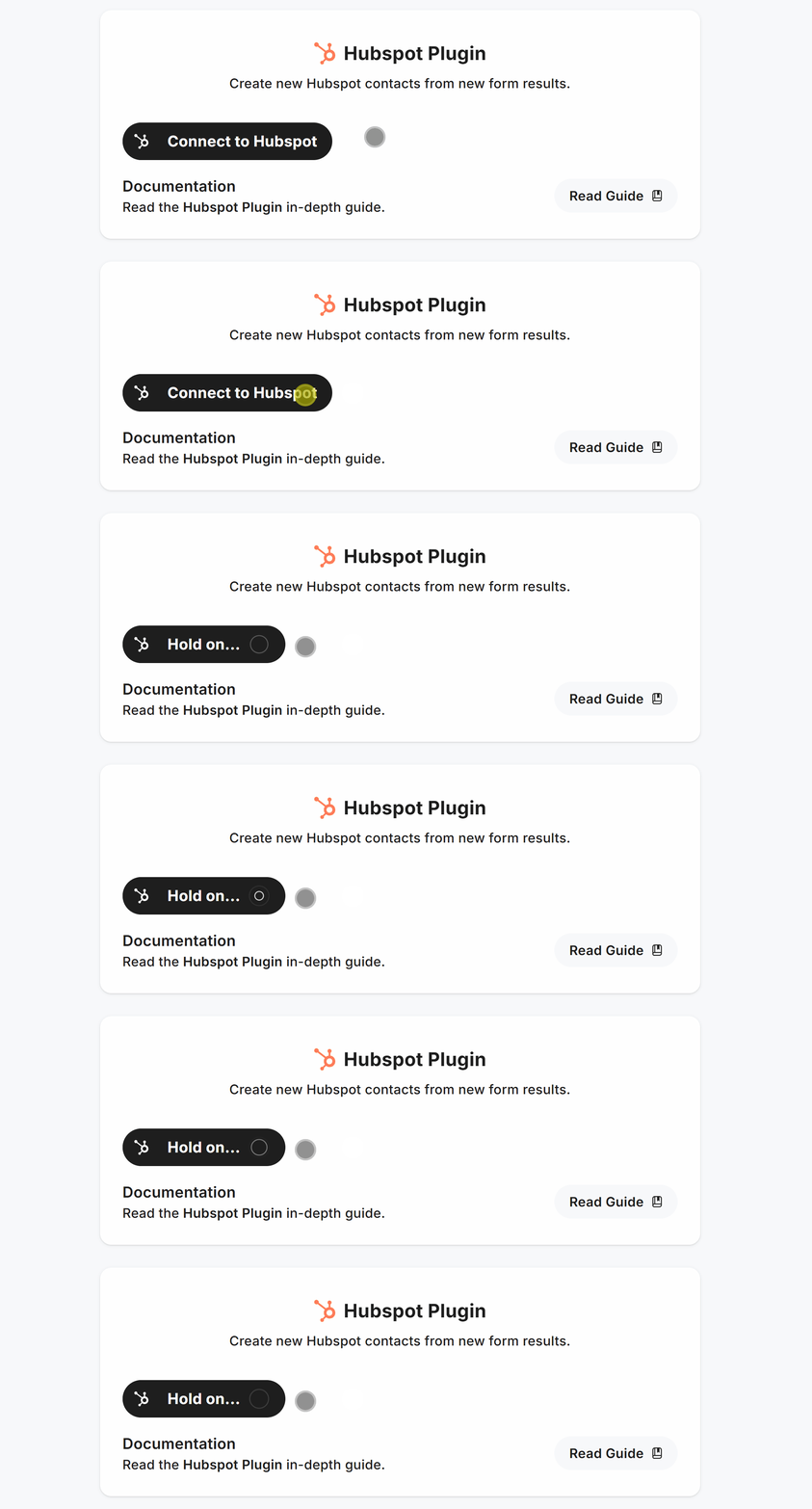
Once the authorization window opens and you’ve logged in, click Choose Account:

Then click Connect app to complete the authorization:

Once connected, choose a Lead Status and, optionally, a Lifecycle Stage to apply to new contacts:
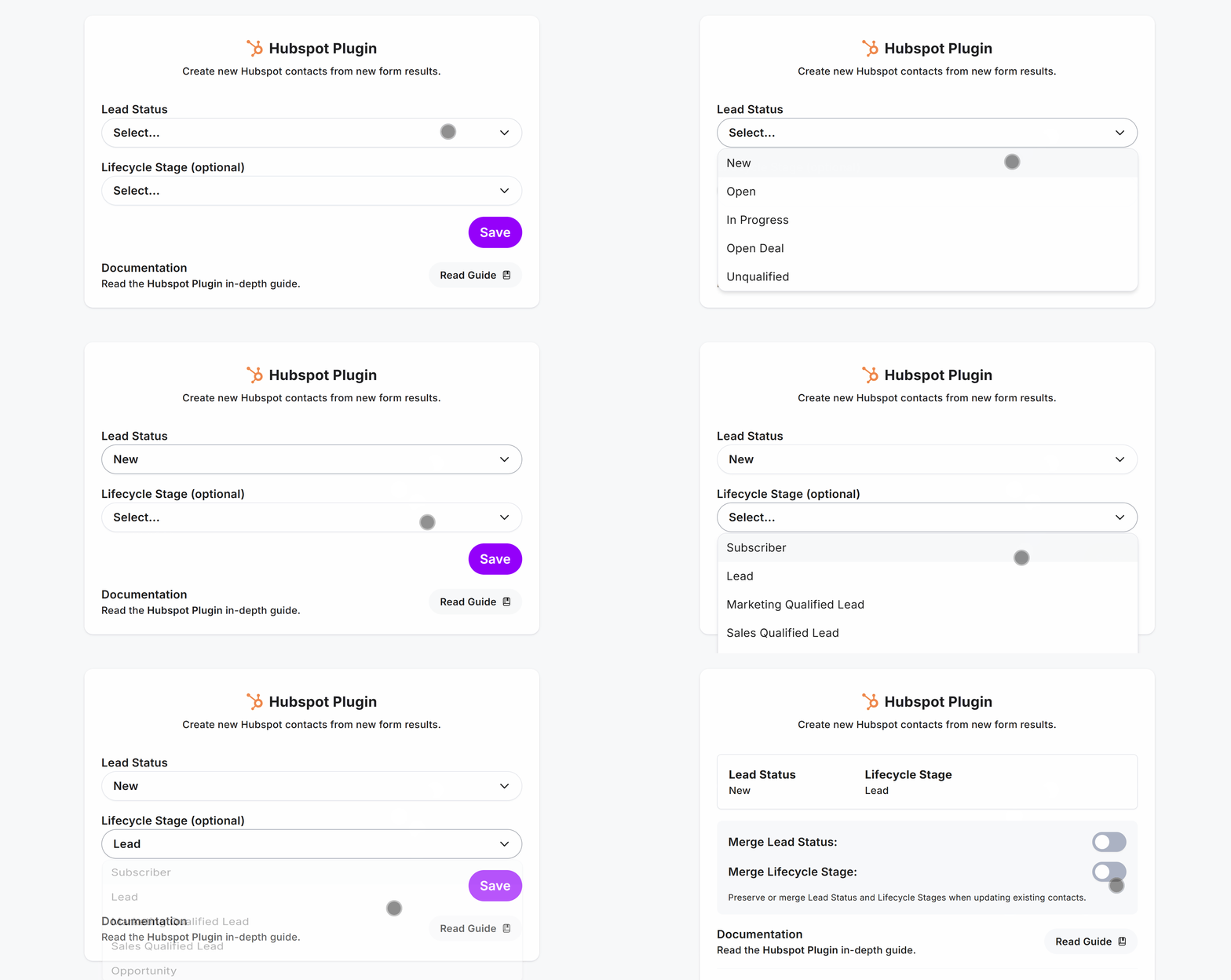
Your selected Lead Status and Lifecycle Stage will be shown in the plugin settings.
🔗 Learn more about HubSpot Lead Status and Lifecycle Stages.
# Map Form Fields to HubSpot
To create contacts with the information collected by your form, use the Field Mapper to connect your form fields to HubSpot property names.
# Find HubSpot Property Names
To find the property name you need, open Contacts in HubSpot and click Actions > Edit properties:

Find the property you want to use by scrolling through the list or searching for it. Once you’ve found it, click Edit:

Click the </> icon to view the property’s Internal name, then copy it:

For example, the First Name property has an Internal name of firstname. This is the value you’ll use to map a form field to the corresponding HubSpot property.
🔗 You can find more information in HubSpot’s list of default contact properties.
Here are some commonly used Internal names:
email- required for a new contact’s emailfirstname- contact’s first namelastname- contact’s last namesalutation- contact’s salutationcompany- contact’s company nameindustry- contact’s industry sectorjobtitle- contact’s job titlephone- contact’s phone numbermobilephone- contact’s mobile phone numberaddress- contact’s street addresscity- contact’s citystate- contact’s state or regionzip- contact’s ZIP or postal codewebsite- contact’s website URL
To map a form field, open the HubSpot Plugin, select the form field, and enter the relevant Internal name in the Map To field:

When a respondent submits the form, the value from the mapped field will be added to the corresponding HubSpot contact property.
# Merge Lead Status and Lifecycle Stage
When the HubSpot Plugin creates a new contact, it applies the configured Lead Status and Lifecycle Stage.
If an existing contact submits your form again, the plugin can also update these values. This is where the merge options come in.
By default, the configured Lead Status and Lifecycle Stage values are used when updating an existing contact. If you’ve changed either value directly in HubSpot, merging the values can overwrite those changes with the values configured in the plugin.
For example, if the plugin is configured with a Lead Status of Open, but you’ve changed an existing contact’s status to New in HubSpot, merging the Lead Status will change it back to Open when that contact submits the form again.
If you only want to set Lead Status and Lifecycle Stage when the contact is first created, leave the merge options disabled. This prevents future form submissions from overwriting those values.
Pro Tip: The Lifecycle Stage can only move forward through the lifecycle when merged. It can’t be moved backwards when updating an existing contact. Lead Status, however, can be merged and updated to any value.
# See It in Action
First, create a form and add some fields:

Use the Field Mapper to connect your form fields to their corresponding HubSpot Internal names:

Click Save and Publish, then enter some data in your form and click Send:

Open HubSpot to see the newly created contact and its mapped properties:

Open the contact to see its Lifecycle Stage and Lead Status:

That’s it! If you need any help, contact us anytime.
Beautiful forms for serious business
From quick enquiries to complex onboarding — signatures, PDFs, conditional logic, unlimited forms and results.
Make Free Forms

 No credit card
-
Unlimited forms
-
Unlimited results