
Create & Publish
 35+ Form Fields
Build the perfect form in a few clicks and drags.
 Conditional Logic
Build forms that adapt to each user's answers.
 E-Signatures
Collect digital signatures directly in your forms.
 Share Form Links
Each form you create generates a unique URL for easy sharing.
 Embed Your Form
Embed your form anywhere that supports HTML.
 Live Preview
Preview and test your form as you build it, without affecting your live form.
 Offline Recovery
Automatically restore form data after connection loss or page refresh.
Branding & Personalization
 70+ Theme Library
Start with a beautiful theme, then make it completely your own.
 Custom Themes
Fully customize your form's design and reuse it across all your forms.
 Cover Photo
Add a custom cover photo or color to the top of your form.
 Logo Branding
Add your own logo to your forms, emails and PDF results.
 Custom Social Share
Customise how your form appears when its link is shared.
 Custom Redirect
Redirect to your own thank you URL after form submission.
 Custom Favicon
Add your own favicon to your form's browser tab.
Sending & Configuration
 Custom Domains
NEW
Send autoresponders from your own domain.
 PDF Results
Automatically generate branded PDFs from your form results.
 Autoresponders
NEW
Send automatic replies to form respondents.
Results & Management
 Results Dashboard
View, manage and export every form result from one place.
 Project Folders
Organize your forms into projects for easier management.
 Project Members
Invite other users to your projects and build forms together.
Unlimited everything.
Build unlimited forms, collect unlimited results, and use unlimited templates — all for free.
By industry
 Legal Services
One home for every legal services form — conveyancing, family law, immigration and more, ready to customize.
 Real Estate
One home for every real estate form — commercial property, estate agents, lettings & property management and more, ready to customize.
 Healthcare
One home for every healthcare form — care homes, dental practices, gp & medical practices and more, ready to customize.
 Fitness
One home for every fitness form — calisthenics, climbing, crossfit and more, ready to customize.
 Beauty
One home for every beauty form — barbering, hair salon, lashes & brows and more, ready to customize.
 Construction
One home for every construction form — bricklaying & masonry, carpentry & joinery, demolition and more, ready to customize.
 Hospitality
One home for every hospitality form — holiday rentals, hotels & b&bs, resorts & holiday parks and more, ready to customize.
By type
Contact Forms Make it easy to reach you — customizable contact forms for any site. Booking Forms Take bookings 24/7 — customizable forms your customers can submit anytime. Registration Forms Register people fast — events, courses and programs, ready to customize. Application Forms Collect applications of any kind — jobs, memberships, programs and more. Feedback Forms Hear what people think — customizable feedback forms for any audience. Lead Forms Fill the pipeline — lead-capture forms you can embed anywhere. Survey Forms Ask the right questions — customizable surveys for any audience.Popular
Contact Form Route customer inquiries cleanly — reason, urgency and account — so messages reach the right team and get the right response. Lead Capture Form Turn social media interest into leads — service, needs and contact details — captured the moment someone’s curious. Event Registration Form Register attendees for your non-profit events online, capturing contact details, dietary needs, and volunteer interest in one friendly form. Appointment Request Form Let patients request an appointment online — preferred date, time, type and reason — so your front desk can book it fast. Job Application Form Take job applications with one clean form — contact, role, resume, availability and eligibility — ready to shortlist. Customer Feedback Form Gather customer feedback on their store visit — satisfaction, what worked and any issues — so you keep shoppers coming back. Membership Signup Form Sign up new members to your community group online, capturing contact details, membership type, and consent in one tidy form.Start from a template.
Every one is free, fully customizable and ready to embed — make it yours in minutes.




Missing an app?
Pipe submissions to 6,000+ apps with Zapier, or hit any endpoint using webhooks.

Smart Validation
Control validation rules for each field to collect accurate, complete data.
Smart Validation can be configured for individual Form Fields to help users enter valid information and correct mistakes as they fill out your form.
Every form you create uses Smart Validation to check responses and provide immediate feedback, helping you collect accurate data while keeping the experience simple and seamless.
The most common validation rule is making a field Required. All form fields that capture data support this with a simple toggle.
Let’s explore some of the Smart Validation features available across our form fields.
# Required Validation
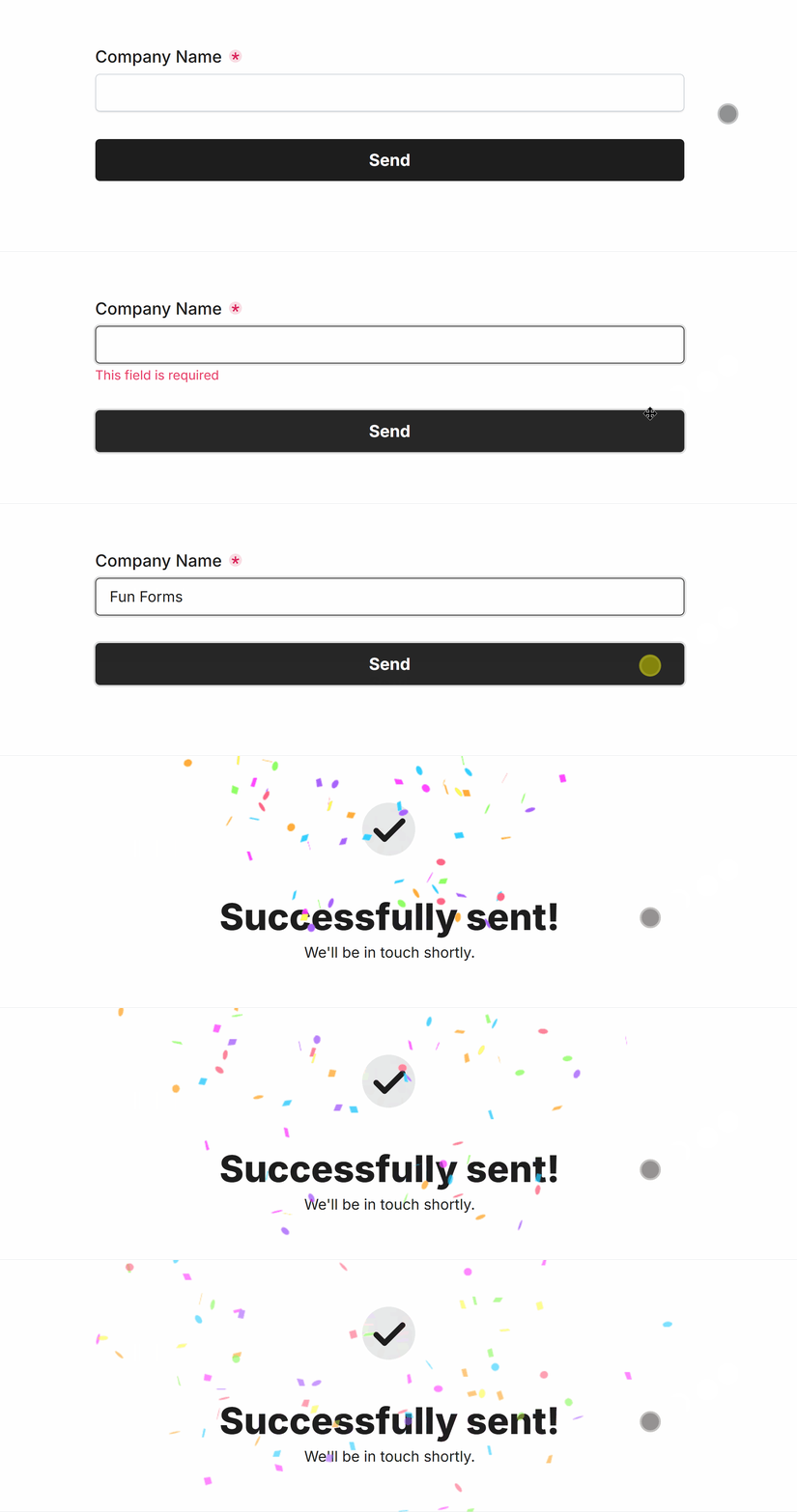
Marking a form field as Required means the user must provide a valid answer before they can complete the form.
Here’s an example of the Short Answer Field with Required validation enabled:
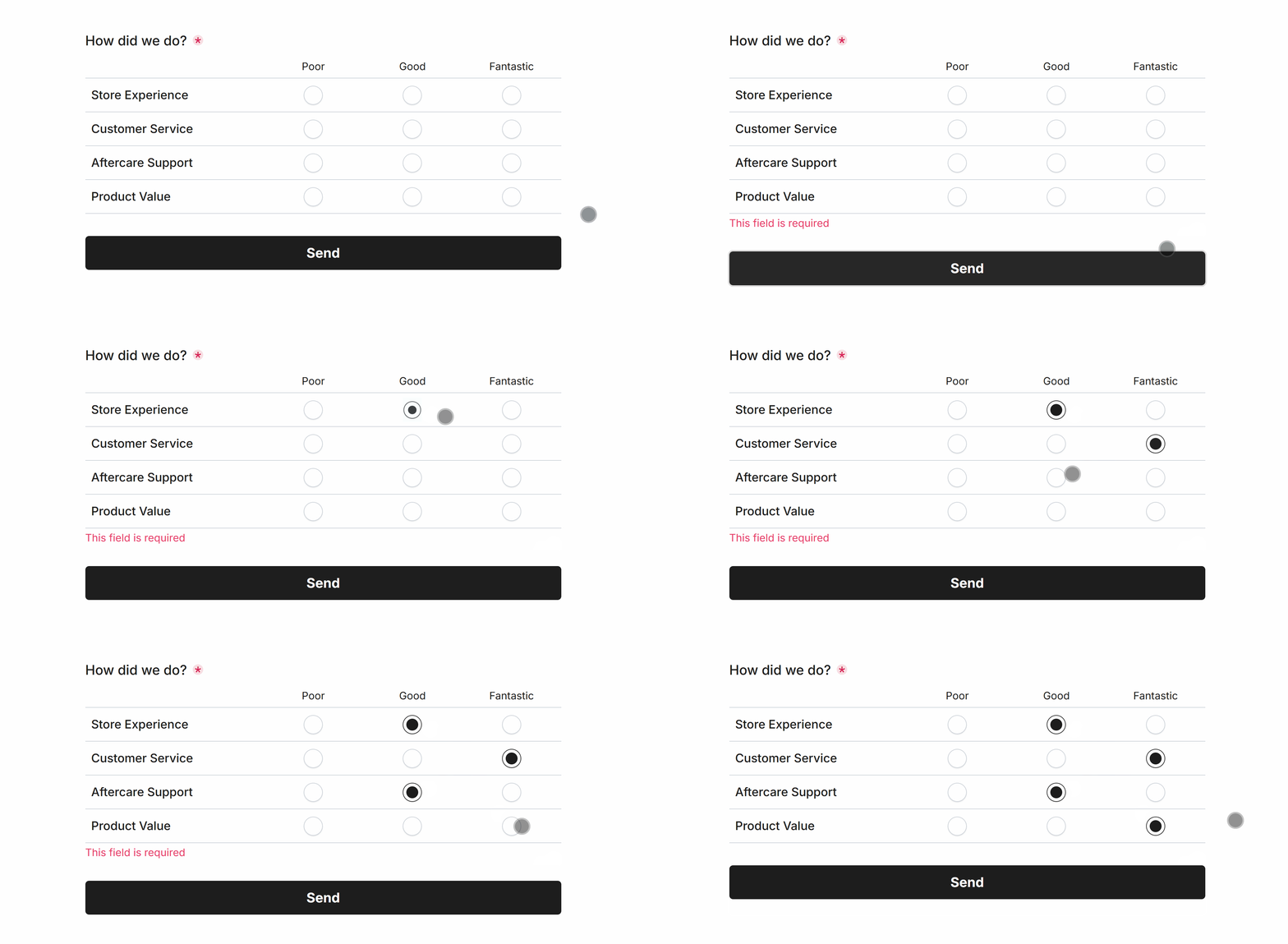
More advanced fields, such as the Matrix Field, also support Required validation:
All Fields support Required validation and won’t allow users to proceed without providing a valid input.
# Min/Max Length Validation
Set a minimum and maximum number of characters that users can enter into a field.
Here’s an example of the Short Answer Field with Min Length and Max Length validation configured:
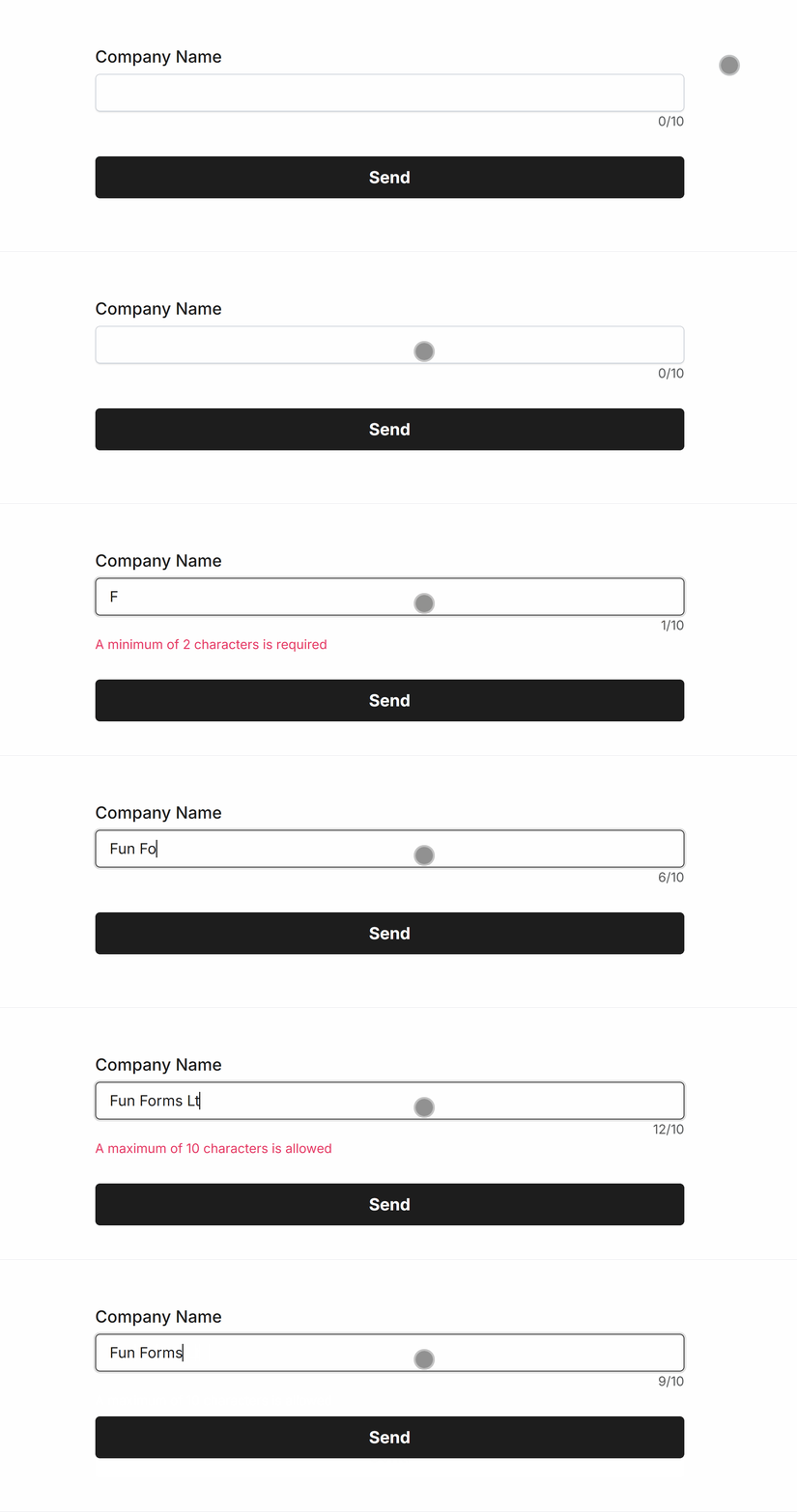 Min Length set to ‘2’ and Max Length set to ‘11’
The Short Answer Field, Long Answer Field, Telephone Field and Number Field support Min Length and Max Length validation.
# Email Validation
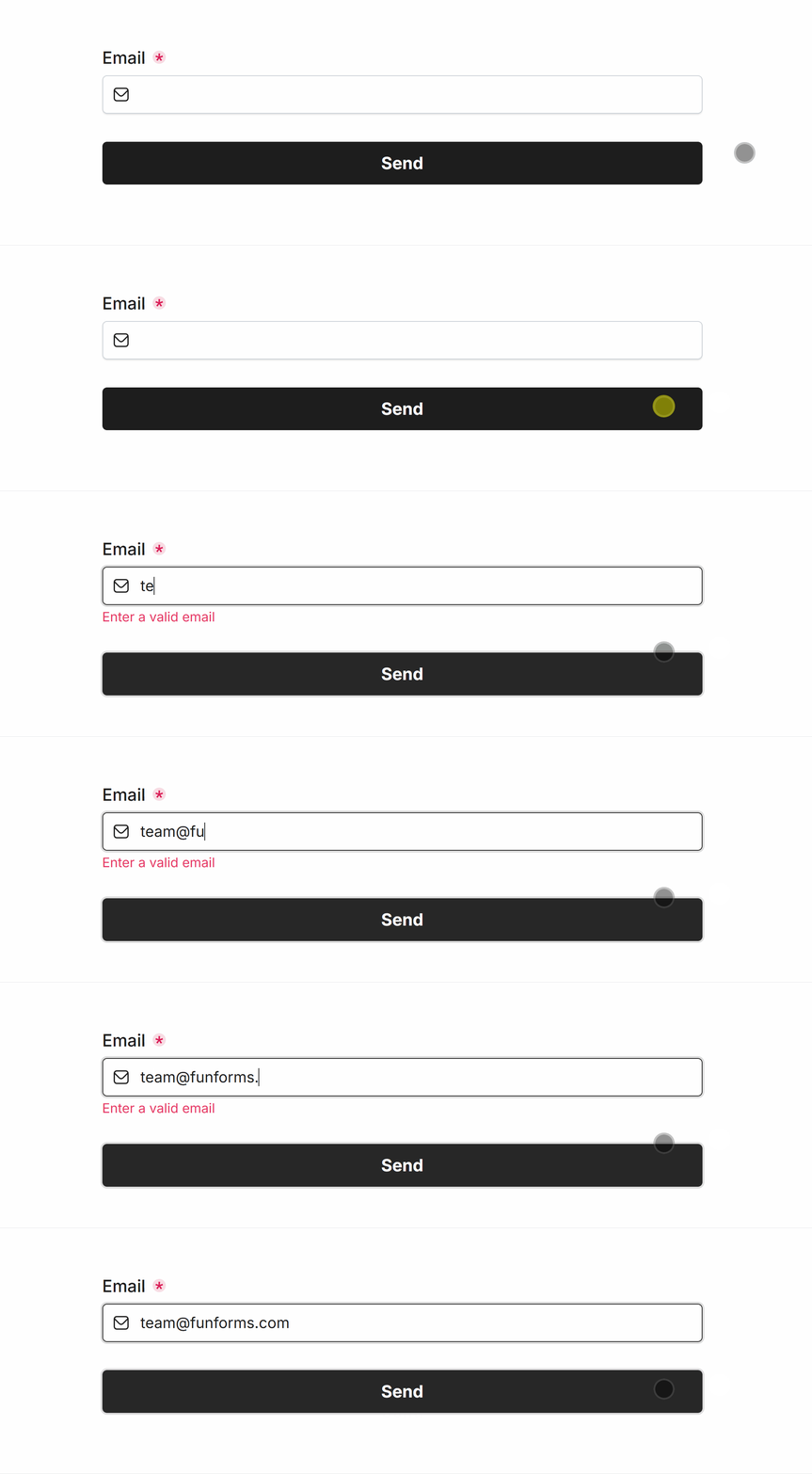
The Email Field automatically validates email addresses, helping prevent invalid email addresses from being submitted.
# Date Validation
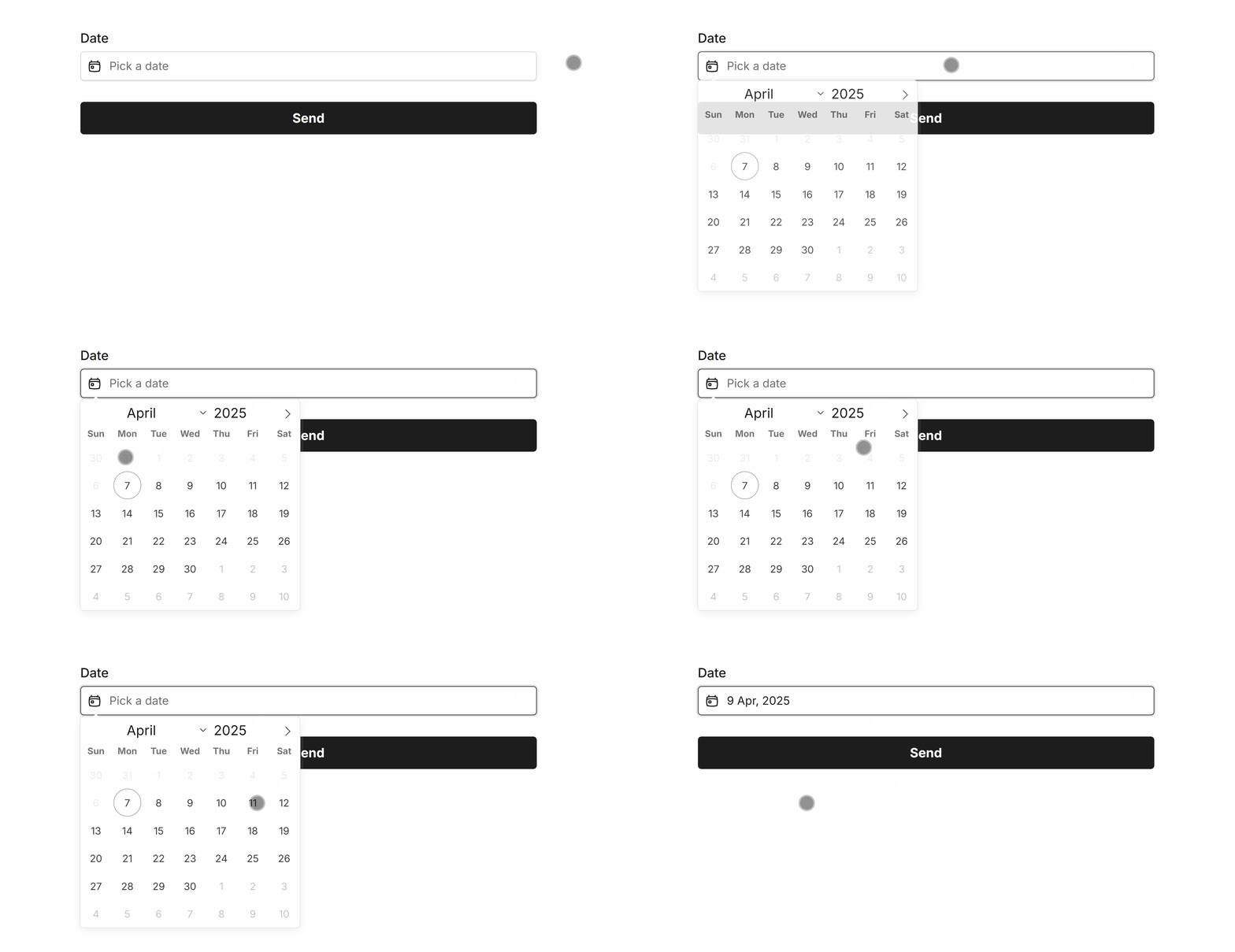
The Date Field validates that users select a valid date.
You can also set a Minimum Date and Maximum Date to restrict the dates users can choose:
You can also enable or disable individual days of the week with a single click, which is useful for preventing users from selecting weekends or other unavailable days:
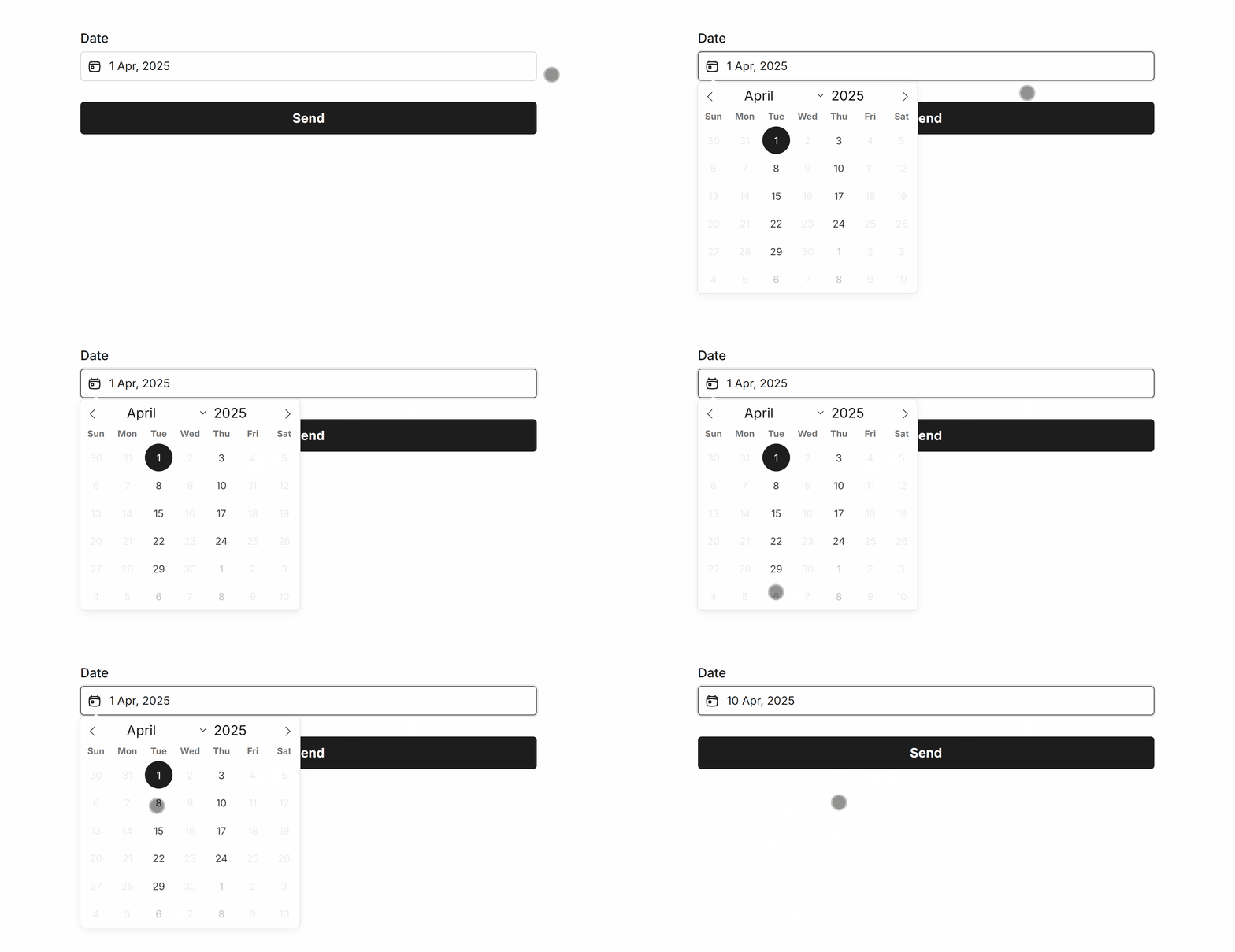
You can even specify individual dates that should be unavailable for users to select.
# Number Validation
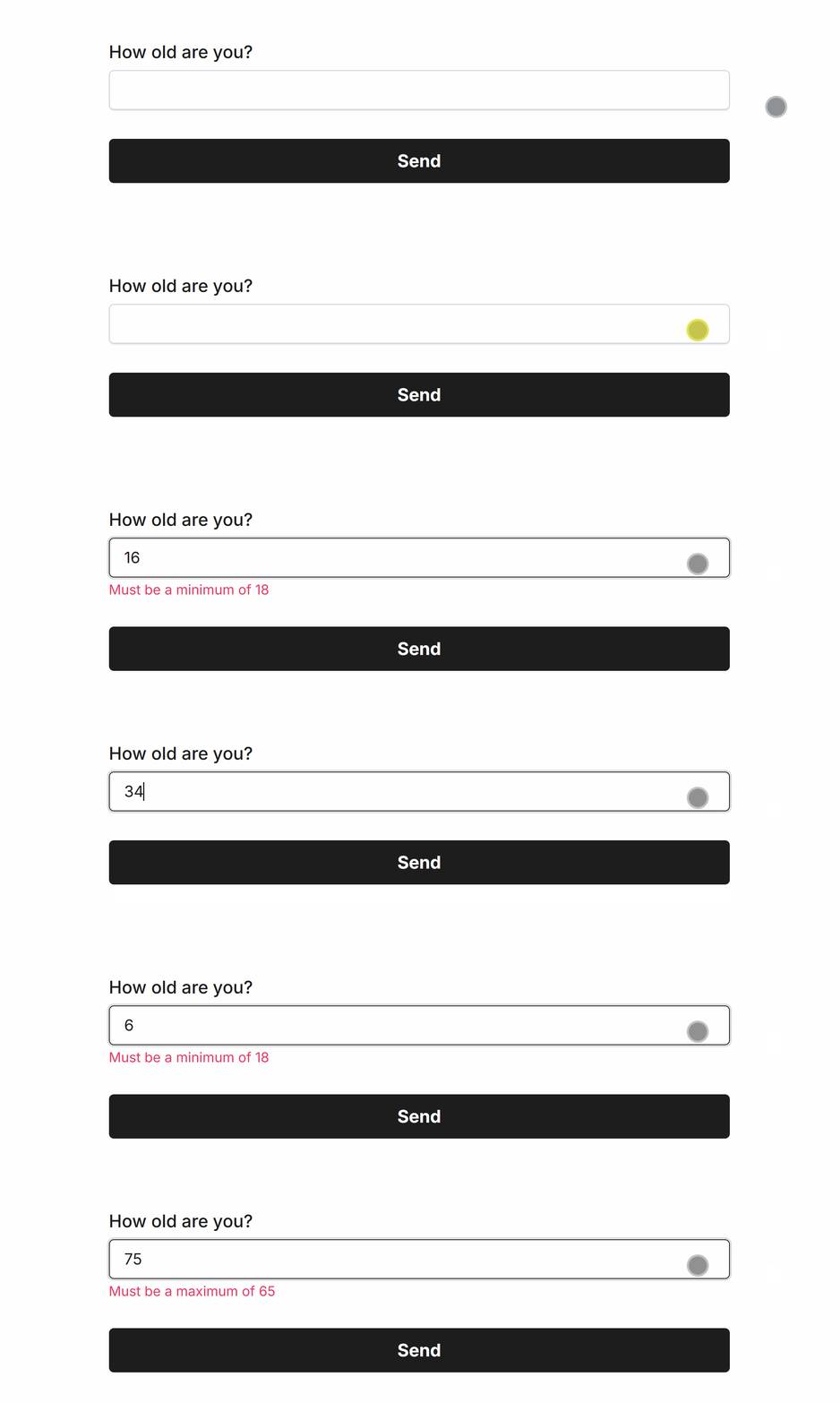
The Number Field only accepts numeric values, helping ensure you collect the type of data you expect.
You can also configure a Minimum Number and Maximum Number:
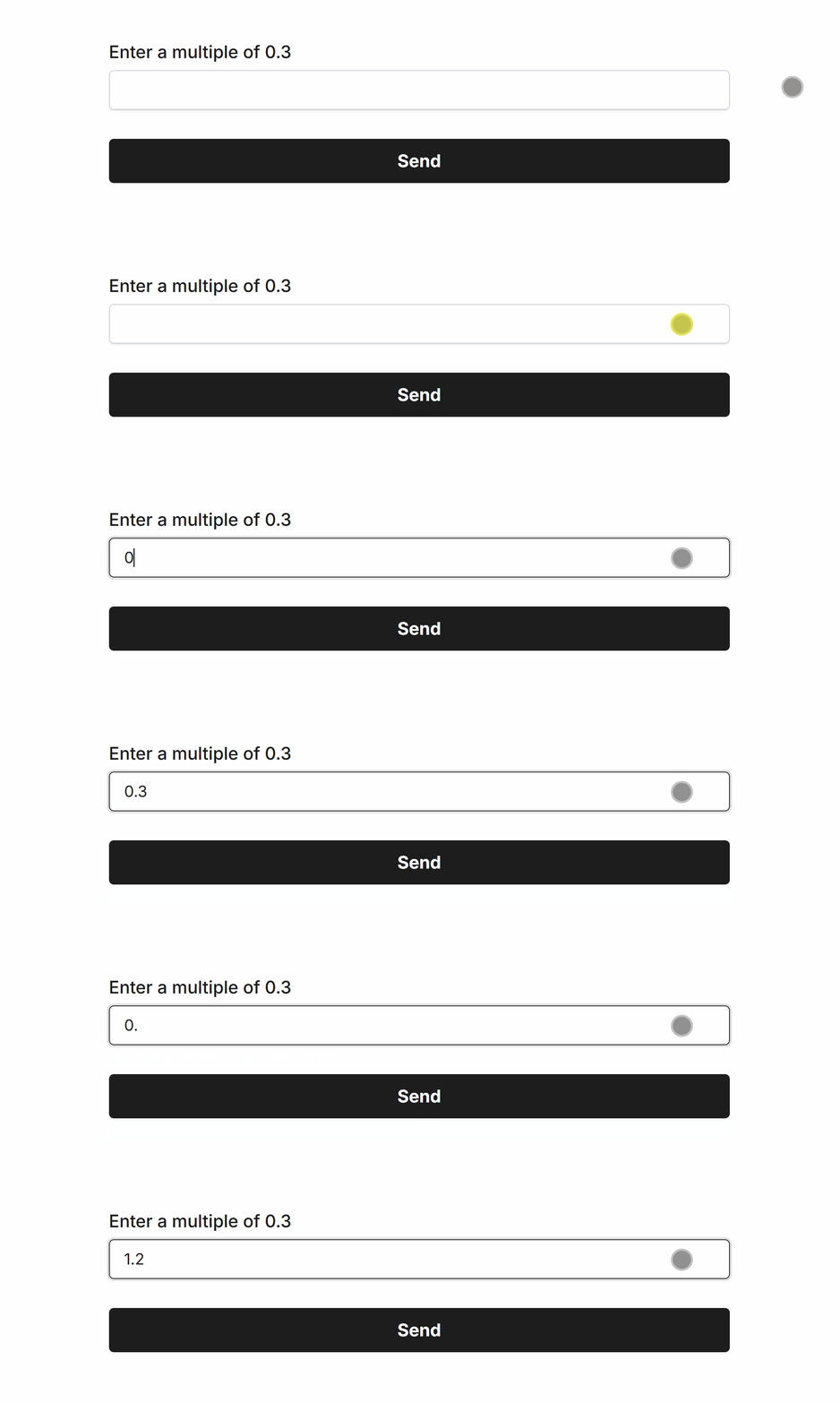
Use Step to control the increments users can enter, including decimal increments:
# URL Validation
The URL Field validates web addresses and supports both http:// and https:// URLs.
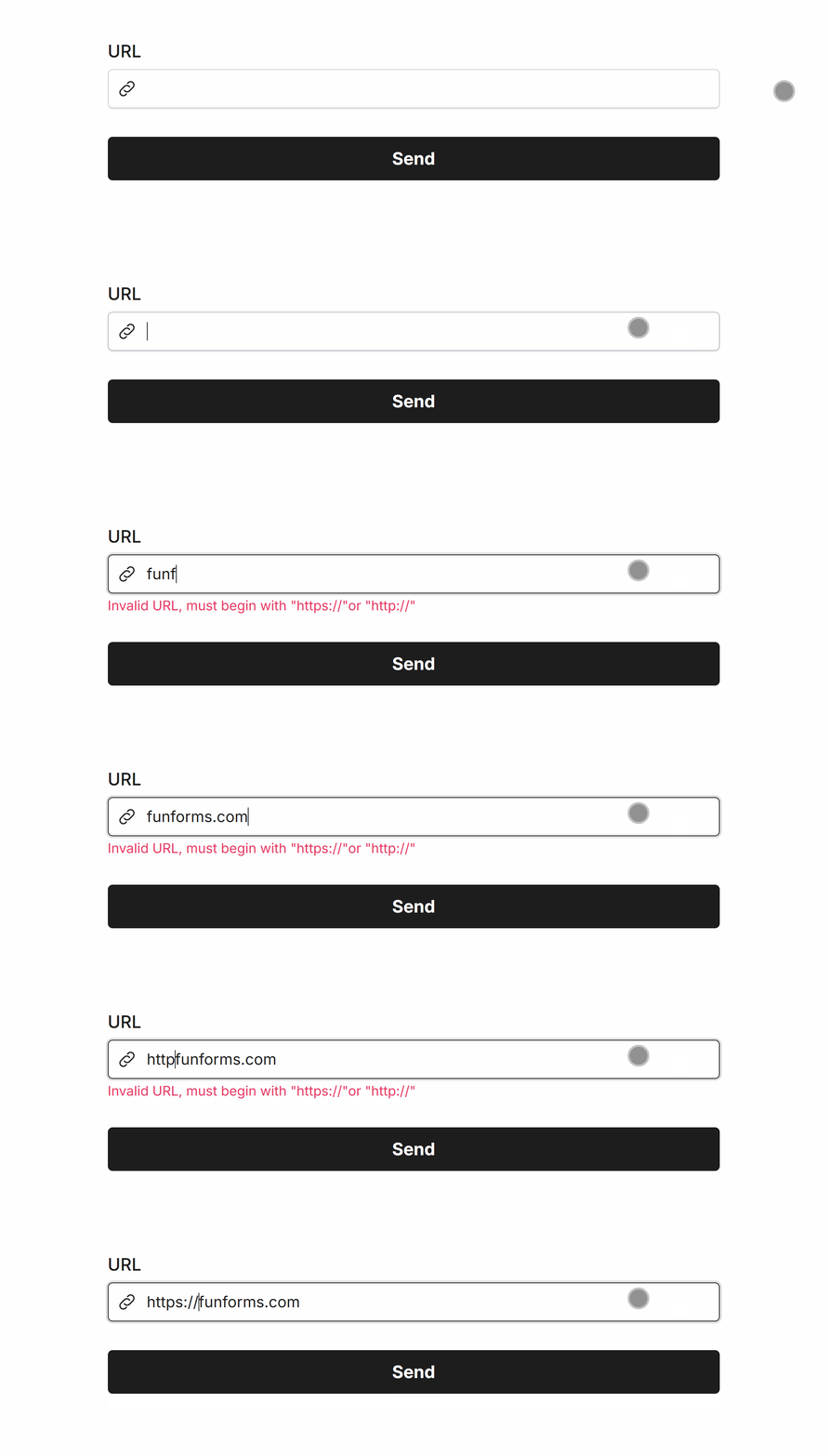
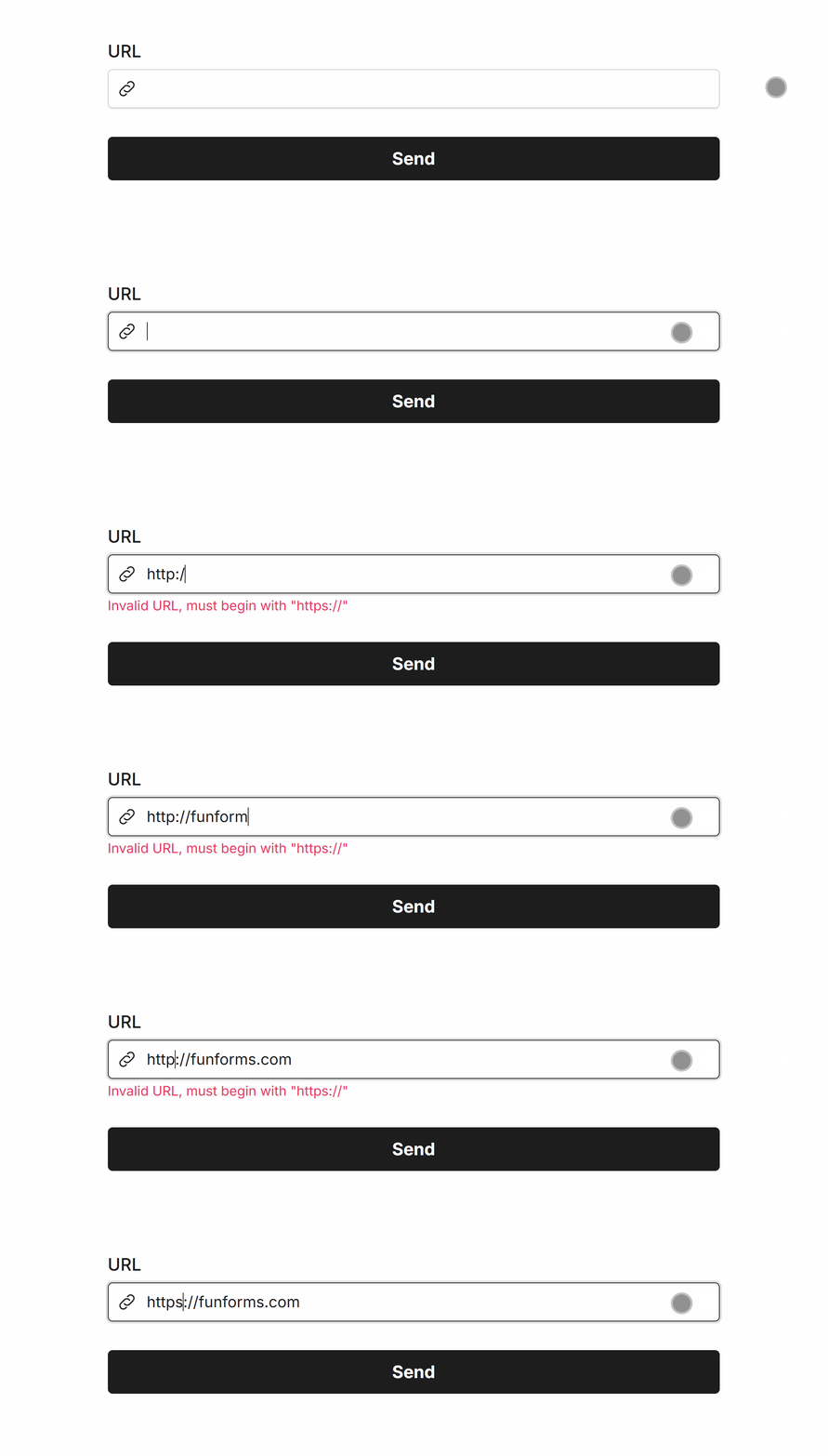
If you only want to accept secure URLs, you can enable HTTPS Only:
# Page Validation
The Page Field does more than split a form into multiple pages. It also ensures that fields requiring validation are valid before the user can continue.
This creates a smoother multi-page experience by preventing users from progressing with incomplete or invalid information:

# Explore Smart Validation
Smart Validation gives you control over what constitutes a valid response, from simple Required fields to specific character lengths, dates, numbers, URLs, and more.
For a full overview of the validation features available for each field, visit All Fields and explore.
Beautiful forms for serious business
From quick enquiries to complex onboarding — signatures, PDFs, conditional logic, unlimited forms and results.
Make Free Forms

 No credit card
-
Unlimited forms
-
Unlimited results
